

I run WordPress on my own device at home. All the media files I am using and will be using are also hosted on a machine in my network using Nextcloud.
If I want to use a media file in a post I need to upload the file from Nextcloud to the WordPress server, which makes the file physically duplicated.
For images there is an option in Nextcloud to prevent this.
If I share a file public, I get a link to it like so:
https://nextcloud.familie-lahme.de:1443/index.php/s/pXcBkCWNn7qTQd8
You can now click on that link and you will be redirected to my Nextcloud instance and the file will be presented for downloading:
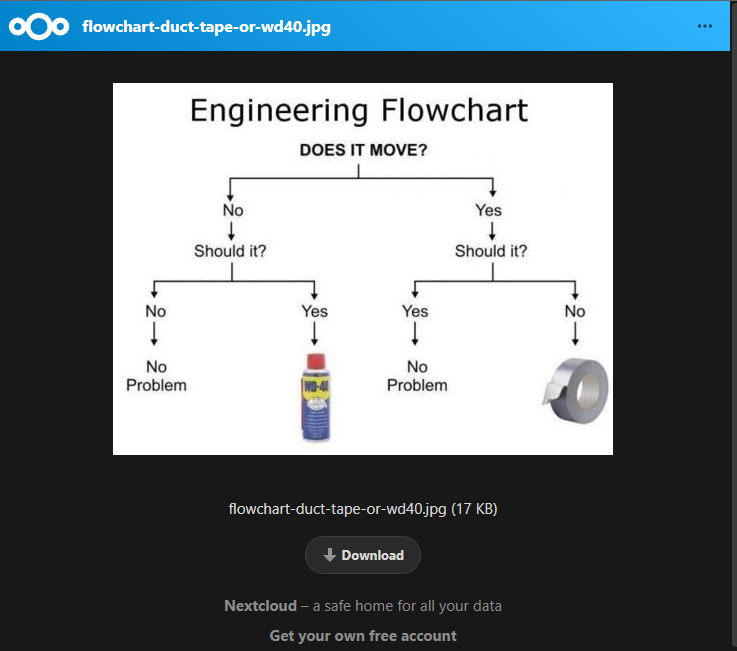
But, if I modify this link like so:
“https://nextcloud.familie-lahme.de:1443/index.php/s/pXcBkCWNn7qTQd8/preview“
You still can click on the link, but you will only see the picture itself.
And this can be used in WordPress to embed the picture:
For video files, this method is not supported. Nextcloud is able to playback videos embedded on its own page, but it does not allow this for remote sites. As an example here is the Nextcloud intro video embedded like the image file:
As You can see, you can see nothing.
Here the link to the file: https://nextcloud.familie-lahme.de:1443/index.php/s/C6yGGnaanGYGTxy
Now I extend the URL with the “preview” flag:
And again, you can see nothing. So this “preview” method does not work for video files.
But as videos are mostly even the largest files you will use, it would be very space consuming to double those files by putting them on the image library on WordPress.
Most used simple solution is to put the files onto Youtube and embed them like so:
But what, if you don’t want to use any external storage -especially Google and its substitutes?
I have searched for WordPress and Nextcloud plugins for that, but did not find any usable and solid maintained ones.
At one point in time I was searching for a solution on another issue and came up with a tool, where you can mount WebDav drives to a system. It is called “davfs2” on Linux: https://en.wikipedia.org/wiki/Davfs2
This gave the idea to me, that also would solve some other challenges if you work with multiple users and don’t want to take away the file control from the users. What if WordPress has its own Nextcloud user. If you now share a file in Nextcloud, the file pops up in the folder of that user. If the WordPress user now connects using webdav, the content of this drive equals the shared files. If we now put the mount point for that webdav drive into the upload folder of WordPress, it should be displayed in the image library.
First thing first, lets install DAVFS2:
root@derdapp003:~# apt update
Hit:2 https://httpredir.debian.org/debian buster InRelease
Hit:3 https://security.debian.org buster/updates InRelease
Hit:4 https://packages.sury.org/php buster InRelease
Hit:1 http://mirrors.xtom.de/armbian buster InRelease
Hit:5 https://httpredir.debian.org/debian buster-updates InRelease
Hit:6 https://httpredir.debian.org/debian buster-backports InRelease
Reading package lists... Done
Building dependency tree
Reading state information... Done
All packages are up to date.
root@derdapp003:~# apt install davfs2
Reading package lists... Done
Building dependency tree
Reading state information... Done
The following additional packages will be installed:
libneon27
The following NEW packages will be installed:
davfs2 libneon27
0 upgraded, 2 newly installed, 0 to remove and 0 not upgraded.
Need to get 296 kB of archives.
After this operation, 532 kB of additional disk space will be used.
Do you want to continue? [Y/n]
Get:1 https://httpredir.debian.org/debian buster/main armhf libneon27 armhf 0.30.2-3 [151 kB]
Get:2 https://httpredir.debian.org/debian buster/main armhf davfs2 armhf 1.5.5-1 [145 kB]
Fetched 296 kB in 1s (426 kB/s)
Preconfiguring packages ...
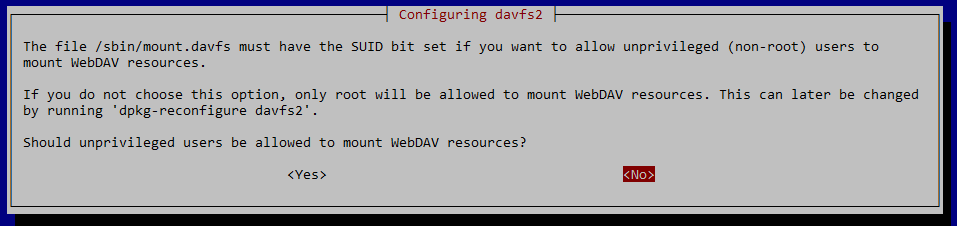 Selecting previously unselected package libneon27:armhf.
(Reading database ... 44713 files and directories currently installed.)
Preparing to unpack .../libneon27_0.30.2-3_armhf.deb ...
Unpacking libneon27:armhf (0.30.2-3) ...
Selecting previously unselected package davfs2.
Preparing to unpack .../davfs2_1.5.5-1_armhf.deb ...
Unpacking davfs2 (1.5.5-1) ...
Setting up libneon27:armhf (0.30.2-3) ...
Setting up davfs2 (1.5.5-1) ...
Processing triggers for man-db (2.8.5-2) ...
Processing triggers for libc-bin (2.28-10+deb10u1) ...
root@derdapp003:~#
Selecting previously unselected package libneon27:armhf.
(Reading database ... 44713 files and directories currently installed.)
Preparing to unpack .../libneon27_0.30.2-3_armhf.deb ...
Unpacking libneon27:armhf (0.30.2-3) ...
Selecting previously unselected package davfs2.
Preparing to unpack .../davfs2_1.5.5-1_armhf.deb ...
Unpacking davfs2 (1.5.5-1) ...
Setting up libneon27:armhf (0.30.2-3) ...
Setting up davfs2 (1.5.5-1) ...
Processing triggers for man-db (2.8.5-2) ...
Processing triggers for libc-bin (2.28-10+deb10u1) ...
root@derdapp003:~#Next step is to create a user in Nextcloud. I call him “WordPressMFL” and it will be a simple user, no special privileges.
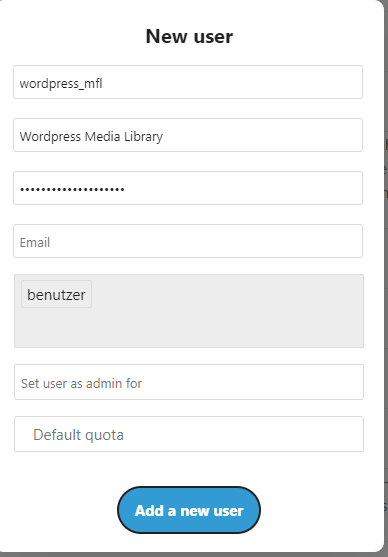
Let’s check, what the User sees in his profile, if a file is shared with him:


On the left side You see the file explorer of the WordPress user. Note the Icons on the shared files.
On the right side you can see, that I shared the “NoThanksButWereBusy.png” has been shared from a subfolder “Bilder/Backgrounds” on my regular user profile, but it pops up in the root folder of the WordPress user. Also note, that the two Nextcloud files shared by in this case my NC admin user obviously overwrite the original files in the WordPress user folder. The needs to be taken in account, if two users share the same file from a shared resource.
Ok, now lets mount the WebDav share on the WordPress server:
root@derdapp003:~/tmp# mount -t davfs https://nextcloud.familie-lahme.de:1443/remote.php/dav/files/wordpress_mfl/ ~/tmp
Please enter the username to authenticate with server
https://nextcloud.familie-lahme.de:1443/remote.php/dav/files/wordpress_mfl/ or hit enter for none.
  Username: wordpress_mfl
Please enter the password to authenticate user wordpress_mfl with server
https://nextcloud.familie-lahme.de:1443/remote.php/dav/files/wordpress_mfl/ or hit enter for none.
  Password:
/sbin/mount.davfs: warning: the server does not support locks
Check the mounts:
root@derdapp003:~/tmp# mount
[...a lot of unrelated stuff...]
https://nextcloud.familie-lahme.de:1443/remote.php/dav/files/wordpress_mfl/ on /root/tmp type fuse (rw,nosuid,nodev,relatime,user_id=0,group_id=0,allow_other,max_read=16384,uid=0,gid=0,helper=davfs)
And now lets look, what we see in it:
root@derdapp003:~/tmp# ll
total 17636
drwxr-xr-x 2 root root        0 Oct  5 09:42  Documents
-rw-r--r-- 1 root root 12764917 Oct  5 09:43 'Nextcloud Manual.pdf'
-rw-r--r-- 1 root root  3963036 Oct  5 09:39 'Nextcloud intro.mp4'
-rw-r--r-- 1 root root    50598 Oct  5 09:43  Nextcloud.png
-rw-r--r-- 1 root root   303078 Jul 18 19:57  NoThanksButWereBusy.png
drwxr-xr-x 2 root root        0 Oct  5 09:43  Photos
-rw-r--r-- 1 root root   976625 Oct  5 09:39 'Reasons to use Nextcloud.pdf'
drwxr-xr-x 2 root root        0 Oct  5 09:43  Templates
drwx------ 2 root root        0 Oct  5 09:59  lost+found
Booyaa…. it works….
Be aware, that all permissions are now locked to “root” as I did this test within this users context.
At the end, we have to have “www-data” in there, if we mount it below the uploads of WordPress.
This being said, we also need a secure and stable way, to mount this share automatically on server boot, meaning, we have to store the password in a matter, where “www-data” can read it, but does not expose it to the internet by any malicious URL Request on the Web UI.
Another thing to mention here: In Linux a mount point is a folder, you have created before mounting the remote resource. If you have used this folder before mounting, all the data in it will not be displayed. The content is still existing, but the File IO will reroute the request to that folder to the remote resource, not reading, what is on the local file system.
So, if we mount to “wp-content/uploads” we will “loose” our media library we used up to that point.
Two approaches, to solve this:
1. Move the files in the mount point to the remote share
2. Create a mount point below the original target (e.g. “wp-content/uploads/remote”)
We will go for scenario #2, as I have some other stuff in mind, that would make managing files in the library a little bit more easy, and keep in mind, that wordpress itself creates a folder structure within the upload folder using the dates of the uploads.
But again: First things first.
Lets start with creating a mount point below the uploads folder:
root@derdapp003:/var/www/wordpress_prod/wp-content/uploads# ll
total 4
drwxr-xr-x 3 www-data www-data 4096 Oct  3 16:23 2022

root@derdapp003:/var/www/wordpress_prod/wp-content/uploads# sudo -u www-data mkdir nextcloud

root@derdapp003:/var/www/wordpress_prod/wp-content/uploads# ll
total 8
drwxr-xr-x 3 www-data www-data 4096 Oct  3 16:23 2022
drwxr-xr-x 2 www-data www-data 4096 Oct  5 10:20 nextcloud
Now we add the credentials to the file “/etc/davfs2/secrets” for the mount point:
/var/www/wordpress_prod/wp-content/uploads/nextcloud wordpress_mfl "[secretpass]"To allow the mount, we need to edit the “/etc/fstab”:
## wordpress remote media
https://nextcloud.familie-lahme.de:1443/remote.php/dav/files/wordpress_mfl /var/www/wordpress_prod/wp-content/uploads/nextcloud davfs uid=www-data,gid=www-data,auto,rw 0 0
This approach means, that the mount is set on boot, and the user and group on that mount point is set to “www-data”.
Lets check that:
root@derdapp003:/# ll /var/www/wordpress_prod/wp-content/uploads
total 5
drwxr-xr-x 3 www-data www-data 4096 Oct  3 16:23 2022
drwxr-xr-x 6 www-data www-data  424 Oct  5 09:43 nextcloud

root@derdapp003:/# ll /var/www/wordpress_prod/wp-content/uploads/nextcloud/
total 17636
drwxr-xr-x 2 www-data www-data        0 Oct  5 09:42  Documents
-rw-r--r-- 1 www-data www-data 12764917 Oct  5 09:43 'Nextcloud Manual.pdf'
-rw-r--r-- 1 www-data www-data  3963036 Oct  5 09:39 'Nextcloud intro.mp4'
-rw-r--r-- 1 www-data www-data    50598 Oct  5 09:43  Nextcloud.png
-rw-r--r-- 1 www-data www-data   303078 Jul 18 19:57  NoThanksButWereBusy.png
drwxr-xr-x 2 www-data www-data        0 Oct  5 09:43  Photos
-rw-r--r-- 1 www-data www-data   976625 Oct  5 09:39 'Reasons to use Nextcloud.pdf'
drwxr-xr-x 2 www-data www-data        0 Oct  5 09:43  Templates
drwx------ 2 www-data www-data        0 Oct  5 10:59  lost+found
ok, now we do have a mount below the Media Library Folder. Let’s see, what WordPress shows us in the Web UI:

Nope, that does not fit. No subfolder “nextcloud” and no images from it in here.
At this point we need a plugin, to get the files into the database. WordPress heavily relies on data records to identify its environment. A file on harddrive not mentioned in the database, does not exist from WordPress perspective.
I found a tiny plugin, that fulfills the needs here: https://wordpress.org/plugins/media-sync/
If you have installed and activated the plugin, read the manual carefully. There are 3 stettings, you should take in account:
- php
max_execution_timein your php.ini file.
You might get an error like this:
if you have a to small value on it. I set mine to 240 seconds (default: 30 seconds). - disable sorting by date
The media library sorts files by default using the upload date. We don’t want WP to mess up our NC structure, so we disable it: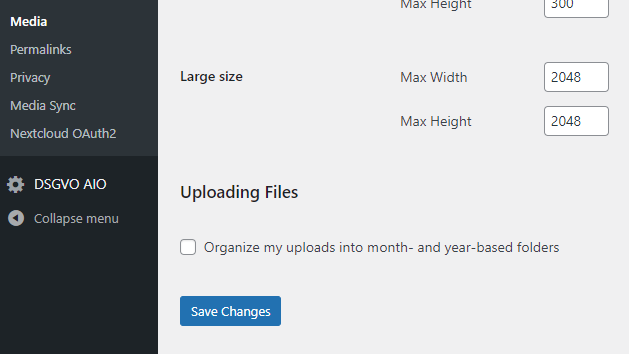
- Media Sync: show dry run option
In the settings of Media Sync there is an option to enable the “Dry Run Option”. Enable it, to prevent accidents and to be able to test things before running sharp. We are fiddling with WPs file handler, so be carefull: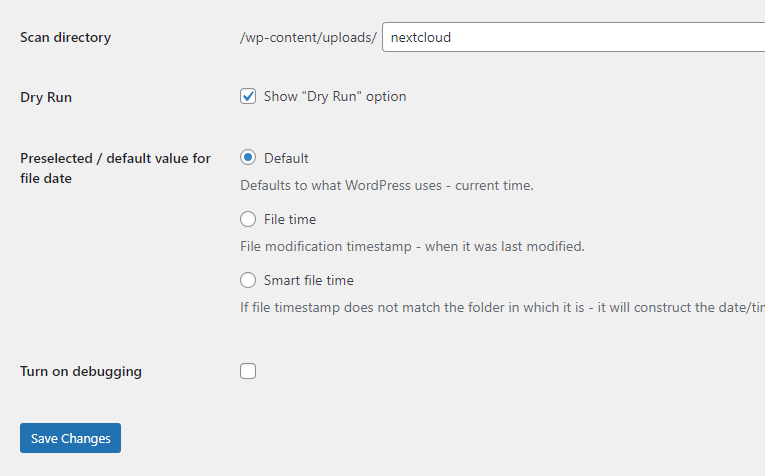
Now everything is set. Lets test, if and how it works.
The Plugin sets below the Media Library Menue:
First thing we need to do, is to run a scan on the folder: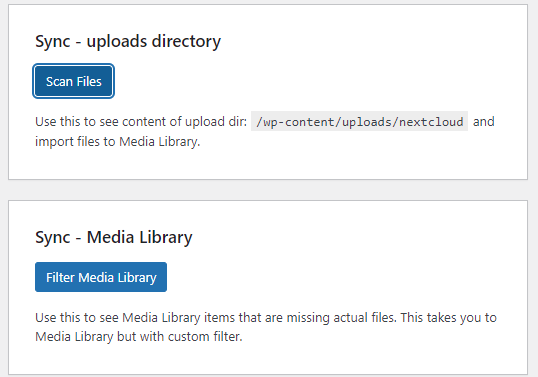
The result will be shown at the bottom of the page: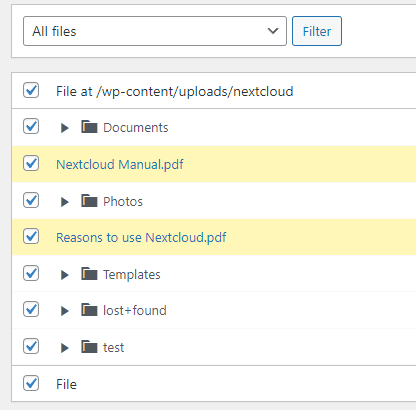
From here on it is a little “try and error”. I checked all files, but for some reason, not all were imported. It even needed 2 times the trigger on the video until it showed up.
Nevertheless, it has to be mentioned, that the files are not moved into another folder. They stay, where they are. Disadvantage: the thumbnails are also stored in that folder:
root@derdapp003:/var/www/wordpress_prod/wp-content/uploads# ll nextcloud/test
total 5184
-rw-r--r-- 1 www-data www-data 3963036 Oct  5 09:39 'Nextcloud intro.mp4'
-rw-r--r-- 1 www-data www-data   11272 Oct  5 12:47  Nextcloud-150x150.png
-rw-r--r-- 1 www-data www-data   22384 Oct  5 12:47  Nextcloud-300x180.png
-rw-r--r-- 1 www-data www-data   26488 Oct  5 12:47  Nextcloud-300x300.png
-rw-r--r-- 1 www-data www-data   28282 Oct  5 12:47  Nextcloud-350x230.png
-rw-r--r-- 1 www-data www-data   50598 Oct  5 09:43  Nextcloud.png
-rw-r--r-- 1 www-data www-data   29599 Oct  5 12:48  NoThanksButWereBusy-150x150.png
-rw-r--r-- 1 www-data www-data   60715 Oct  5 12:48  NoThanksButWereBusy-300x169.png
-rw-r--r-- 1 www-data www-data   66845 Oct  5 12:49  NoThanksButWereBusy-300x180.png
-rw-r--r-- 1 www-data www-data   96750 Oct  5 12:48  NoThanksButWereBusy-350x230.png
-rw-r--r-- 1 www-data www-data  298424 Oct  5 12:48  NoThanksButWereBusy-768x433.png
-rw-r--r-- 1 www-data www-data  348479 Oct  5 12:49  NoThanksButWereBusy-850x479.png
-rw-r--r-- 1 www-data www-data  303078 Jul 18 19:57  NoThanksButWereBusy.png
So it might get a little confusing on the Nextcloud UI later on: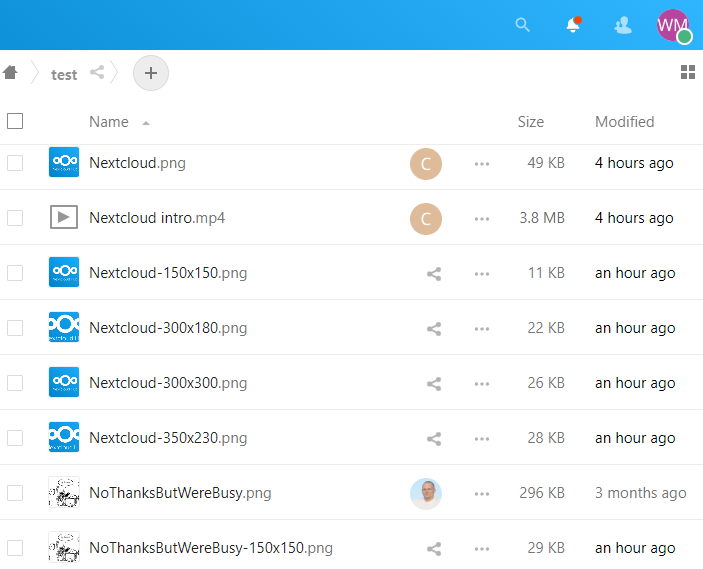
And now for the great final: What about the video file?
Here it comes:
And this time it loads direct from the Nextcloud using the webdav mount on the wordpress server.
Resume:
This is not the “best” Solution, but it is for free. There are other Plugins in the wild, that need to be licensed and sometimes the price only makes sense for those, who make money with their WP instance. I do not.
Another point to consider is speed. I run on a low budget hardware and performance is not my primary target. This solution creates some bottlenecks in the chain, that reduce loading time. I do not serve to thousands of followers or fans. I only put my 2cents to the swarm.
So if you join me on this, feel free to enhance.